




The best file setup for DTF gang sheets uses artwork at its final print size, a transparent background, sharp image resolution, correct sheet dimensions, and enough cutting room between designs. Do not stretch small images after upload. Do not let artwork cross the sheet boundary. Plus, do not overlap designs unless the overlap is intentional. For a builder or print-ready upload option, Bostonian DTF helps Boston creators and print businesses prepare custom sheets through an experienced production team.
What Makes a DTF Gang Sheet Print-Ready?
A print-ready DTF gang sheet contains several finished designs arranged on one transfer sheet. Each graphic should be clean, correctly sized, and ready for production without major editing.
The printer should not have to guess whether a logo should be three inches or twelve inches wide. That decision belongs in the artwork file.
Set Every Design to Its Final Size
DTF artwork size means the actual width and height of the finished transfer. A three-inch chest logo should measure three inches in the file or builder.
Screen size can fool you. A logo may look huge on a phone and still print far too small on an adult hoodie. Measure the garment placement first, then set the artwork.
What Gang Sheet Dimensions Should You Use?
Your gang sheet file dimensions must match the exact sheet selected at checkout. A file prepared for a 22-inch-wide sheet should not be placed onto a different width without checking the new scale and layout.
The live builder currently opens with a 22 by 10-inch standard sheet. Longer sheet options may provide more room while keeping the same printing width.
|
Sheet measurement |
Pixel size at 300 PPI |
Typical use |
|
22 by 10 inches |
6,600 by 3,000 pixels |
Small mixed layout |
|
22 by 24 inches |
6,600 by 7,200 pixels |
Logos plus medium graphics |
|
22 by 36 inches |
6,600 by 10,800 pixels |
Apparel run with mixed sizes |
|
22 by 60 inches |
6,600 by 18,000 pixels |
Repeat designs or larger orders |
These examples form a practical DTF file size guide, but the available product dimensions should remain the final reference.
What Resolution Is Best for DTF Artwork?
Strong DTF image resolution helps edges, small lettering, textures, and fine details print cleanly. Adobe identifies 300 pixels per inch as the standard target for high-quality close-view printing.
The key phrase is “at final size.” A two-inch image at 300 PPI may lose quality when enlarged to ten inches because the same pixels are being spread across a larger area.
Check Pixel Dimensions Before Uploading
Use this simple rule:
Final width in inches × 300 = required pixel width
A 10-inch-wide design should be about 3,000 pixels wide. A 12-inch-wide design should be about 3,600 pixels wide.
A large file is not always a sharp file. Saving a blurry screenshot as a bigger PNG does not restore missing detail. It just gives you a larger blurry image... frustrating, but true.
Which File Type Should You Upload?
The current builder asks users to upload artwork for DTF as PNG files. PNG supports transparent backgrounds and preserves raster detail without the compression commonly found in low-quality JPEG files.
A print-ready upload may have different file requirements from an online builder. Always follow the instructions shown for the specific ordering method.
Remove the Background
A transparent background allows only the intended artwork to print. A white rectangle behind a logo may become part of the transfer if it remains in the file.
Inspect the design over both light and dark backgrounds. This helps reveal stray pixels, faint boxes, rough edges, and hidden white marks.
How Should You Arrange a Gang Sheet?
A strong DTF gang sheet layout uses available space without making cutting difficult. Start with the largest designs. Then fit chest logos, sleeve marks, neck labels, names, or small graphics into the remaining areas.
Rotate artwork when the design still prints in the correct orientation after cutting. Keep every graphic fully inside the builder boundary.
Leave Practical Cutting Space
Good gang sheet spacing gives you enough room to separate transfers without cutting into nearby artwork. There is no single spacing rule for every shop because scissors, rotary cutters, and production workflows differ.
Do not place thin text against another design simply to save a tiny strip of film. A packed sheet that is hard to cut can waste more time than it saves.
|
Layout issue |
What can happen |
Better approach |
|
Designs overlap |
Part of each graphic may print together |
Separate every transfer |
|
Artwork crosses the boundary |
Part of the design may be cut off |
Keep it inside safe margins |
|
Excess transparent space |
Useful sheet area is wasted |
Trim the artwork canvas |
|
Mixed accidental sizes |
Transfers print at the wrong scale |
Verify each measurement |
|
Tiny cutting gaps |
Designs become difficult to separate |
Leave workable space |
|
Duplicate artwork is missed |
The order quantity is wrong |
Count every design before checkout |
How Do You Create a DTF Gang Sheet?
People searching how to create a DTF gang sheet can use either an online builder or design software.
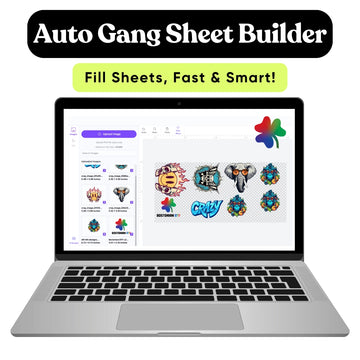
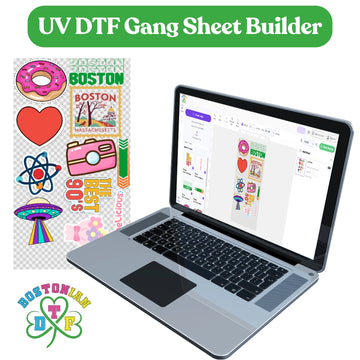
A builder lets you upload separate PNG files, choose quantities, resize designs, and arrange the sheet. A print-ready upload gives you full control because the whole layout is prepared before submission.
Follow This File Setup Process
- Confirm the exact gang sheet width and length.
- Collect the final artwork files.
- Remove unwanted backgrounds and empty canvas space.
- Set each design to its final print dimensions.
- Check raster artwork at 300 PPI.
- Place larger designs first.
- Fit smaller graphics into open areas.
- Leave enough room for cutting.
- Check the builder for overlap or boundary warnings.
- Review spelling, quantities, size, and orientation before checkout.
This is also the simplest answer to how to build a DTF gang sheet without turning the process into a puzzle.
Should You Use a Builder or Upload a Finished Sheet?
Use a builder when your designs are separate and you want to arrange them online. It is useful for mixed logos, repeat quantities, sleeve designs, and fast order preparation.
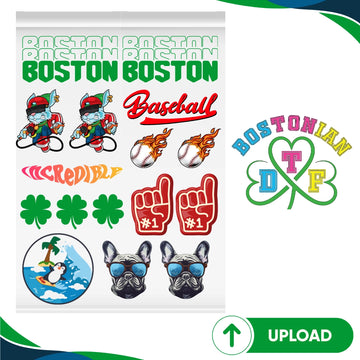
Upload a finished sheet when your DTF graphics setup is already complete in Adobe Illustrator, Photoshop, Canva, or another design program. This gives you control over every position and measurement.
Neither method fixes weak artwork. The builder organizes files. It does not recreate missing pixels, correct spelling, or know the intended print size.
What Are the Most Common DTF Transfer Mistakes?
Frequent DTF transfer mistakes begin before the heat press. Low-resolution artwork, wrong sizing, hidden backgrounds, missed duplicates, overlapping graphics, and files placed outside the sheet can all create production problems.
Mirroring is another point to confirm. Do not mirror the complete sheet unless the printer’s instructions specifically tell you to do so. The production workflow may handle that step.
We once watched a clean logo become useless because one phone number had a single wrong digit. The print quality was perfect. The file was not.
Why Does File Setup Matter for Boston Businesses?
Boston reported more than 18,000 small businesses in its 2026 Small Business Month update. Those businesses employ 127,000 people and generate close to $28 billion each year.
Local restaurants, gyms, contractors, schools, artists, nonprofits, event teams, and clothing brands all use printed apparel in different ways. A Dorchester restaurant may need chest logos. A Cambridge startup may need large hoodie graphics. A Roxbury nonprofit may need names plus event artwork.
One organized gang sheet can hold those mixed placements in a single order.
“A print-ready gang sheet should leave the printer with nothing to guess.”
That is the standard.
Conclusion
The best file setup for DTF gang sheets combines correct dimensions, final-size artwork, 300 PPI raster images, transparent backgrounds, practical spacing, and a full preflight check.
Build around the exact sheet selected. Keep designs inside the boundaries. Remove unused canvas space. Review every size and quantity before ordering.
A few careful minutes at the file stage can prevent wasted film, incorrect transfers, and delayed apparel orders.
FAQs
What is the best file format for a DTF gang sheet?
A transparent high-resolution PNG is commonly used for online gang sheet builders. Follow the file requirements displayed for the specific product before uploading.
What resolution should a DTF gang sheet use?
Raster artwork should generally be prepared at 300 pixels per inch at its final printed size for sharp, detailed output.
What size should my DTF artwork be?
Each graphic should be set to the exact width and height needed on the finished garment before it is placed onto the gang sheet.
How much space should I leave between gang sheet designs?
Leave enough space to cut each transfer without touching nearby artwork. The required amount depends on your cutting tools and production workflow.
Should I mirror a DTF gang sheet before uploading it?
Do not mirror the sheet unless the printer’s instructions specifically require it. Many DTF production workflows handle mirroring during printing.
Can I enlarge a low-resolution image in the gang sheet builder?
You can enlarge it, but doing so may reduce effective resolution and create pixelated or soft printed artwork.
Why should transparent space be removed from each design?
Unused transparent space consumes sheet area and makes designs harder to arrange closely without improving the final print.
What should I check before submitting a DTF gang sheet?
Check the sheet dimensions, artwork size, image quality, transparent backgrounds, spacing, spelling, quantities, overlap warnings, and sheet boundaries.


