
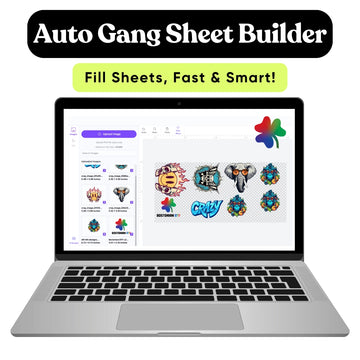
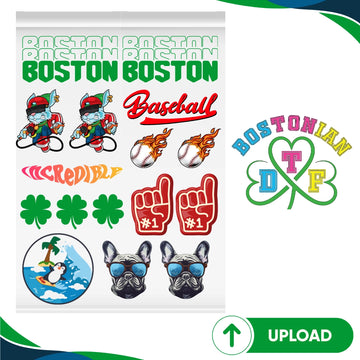

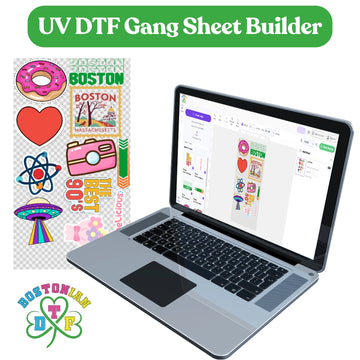



The best way to prepare several logos for one DTF gang sheet is to clean each artwork file first, set each logo to its final print dimensions, remove unwanted backgrounds, confirm the resolution, count the exact quantity needed, then arrange the designs within the available sheet area without overlap. Do not resize logos simply to fill empty gaps. For Boston brands and print businesses that want an online layout option, Bostonian DTF currently offers a 22-inch-wide builder with sheet lengths from 10 to 300 inches, plus a pre-made upload option that starts at 22 x 5 inches.
How to Prepare Logos for a Clean DTF Gang Sheet Layout
Preparing the individual logos correctly saves more time than trying to repair the finished sheet at the end.
- Use the final approved logo version for every business or design.
- Set each logo to its real print width and height.
- Keep transparent backgrounds where the garment should show through.
- Prepare raster artwork at strong print resolution.
- Count every logo before duplicating it.
- Group matching logos and sizes together.
- Leave enough space to cut each finished transfer.
- Review the whole sheet at final dimensions before submitting it.
The current pre-made upload page asks for high‑resolution PNG artwork at 300 DPI with backgrounds. Adobe also says that 300 pixels per inch is the target, for high‑quality close‑up printing unless the printer needs a different specification.
What Should You Do Before Arranging Multiple Logos?
Do not open a gang sheet builder first.
Open the logo files first.
Check spelling, brand colors, transparent areas, resolution, dimensions, and artwork version. A perfectly arranged sheet can still fail if it contains the wrong logo.
Confirm Which Logo Is Actually Approved
Businesses often have several versions of the same identity.
You may have a horizontal logo, stacked logo, icon, one-color version, white version, plus an old file somebody still has sitting in a shared folder.
For custom logo DTF transfers, identify which version belongs on which garment before layout begins.
File names such as Restaurant-Logo-White-4in.png are much safer than logo-final-new2.png.
How Should You Size Each Logo?
Every logo should enter the sheet at its intended print size.
That is the foundation of good DTF gang sheet artwork setup.
If a left-chest logo needs to print 4 inches wide, prepare it at 4 inches. If a back logo needs to print 11 inches wide, set it to 11 inches.
Preserve the Original Proportions
Never stretch artwork to fill a space.
A logo that is twice as wide as it is tall should remain in that ratio. If it measures 4 inches wide, its proportional height might be 2 inches.
Changing it to 4 x 4 inches would distort the brand.
Adobe's current Photoshop guidance recommends maintaining aspect ratio when changing image dimensions.
What Resolution Should Logo Artwork Use?
For raster logos, 300 PPI at the intended print size is a strong target.
That means the resolution should be evaluated after you establish the final physical dimensions.
A tiny 300 PPI image does not magically remain sharp when enlarged several times.
Do Not Upscale Weak Logos Without Checking Them
Suppose somebody emails you a 400‑pixel‑wide logo taken from a website. When you measure that logo at four inches, you find that the logo contains only about one hundred pixels per inch. If you simply change the resolution setting to three hundred, the logo does not create the missing detail because the logo has not been resampled. Even when the logo is resampled, software must guess what the new pixels should look like. Adobe explains the difference between image dimensions, resolution, and resampling in its print‑resolution guide.
When possible, go back to the original artwork.
Which File Format Works Best?
The current pre-made custom DTF gang sheet page requests high-resolution PNG artwork with transparent backgrounds.
PNG works well because it can preserve transparent areas around logos.
That matters for apparel. If the artwork has a white rectangular background that was never meant to print, the transfer can reproduce that rectangle.
Zoom Into the Edges
Look for stray pixels, rough cutouts, fuzzy borders, or leftover background colors.
On a black shirt, a tiny unwanted white edge can become very obvious.
This is one of those boring preflight checks that saves real money later... not glamorous, but useful.
How Do You Prepare Different Versions of the Same Logo?
Separate them by intended use.
A white logo may be designed for black garments. A black logo might be used on white shirts. A one-color mark may be intended for staff uniforms while the full-color version goes on merchandise.
For logo DTF transfers, make those choices before duplicating artwork.
Name Each Size Clearly
A simple naming structure keeps production clean:
|
File name |
Intended use |
Final width |
|
Cafe-White-Chest.png |
Black T-shirt chest |
4 in. |
|
Cafe-Color-Back.png |
Full back |
11 in. |
|
Cafe-Icon-Sleeve.png |
Sleeve |
3 in. |
|
Cafe-Logo-Youth.png |
Youth shirt |
7 in. |
Once the files enter one multiple-logo DTF gang sheet, those labels become your roadmap.
How Should You Count Logo Quantities?
Count garments first, then print locations.
If 40 shirts need one chest logo and one back logo, you need 40 chest transfers plus 40 back transfers.
That is 80 individual prints.
Add planned test pieces or replacements before arranging the final sheet, not after.
Build a Quantity Table Before Uploading
For example:
|
Logo version |
Garments |
Prints per garment |
Transfers needed |
|
4 in. chest logo |
40 |
1 |
40 |
|
11 in. back logo |
40 |
1 |
40 |
|
3 in. sleeve mark |
12 |
1 |
12 |
|
Test and replacement pieces |
N/A |
N/A |
5 |
|
Total |
Mixed |
Mixed |
97 |
Now your DTF logo gang sheet has a real production target instead of a rough guess.
How Should You Arrange Several Logos on One Sheet?
If you are learning how to arrange designs on a gang sheet, start with the largest artwork.
Large pieces control the overall structure. Smaller logos are easier to fit into spaces left around them.
Place Large Logos First
Put full-back graphics and large front logos into the layout before chest marks, sleeve designs, or neck labels.
Then use the smaller designs to fill practical gaps.
This is more efficient than scattering tiny logos everywhere and discovering there is nowhere left for the 11-inch graphic.
Think of packing a car trunk. Suitcases first. Socks later.
Can You Rotate Logos to Save Space?
Yes, when orientation does not change the artwork itself.
A horizontal logo can sometimes be turned 90 degrees and placed beside a large graphic.
Rotation is different from distortion.
Keep the final dimensions intact.
This is one of the easiest ways to improve DTF gang sheet file setup without reducing print size.
How Much Space Should You Leave Between Logos?
Leave enough room for clean cutting.
There is no universal gap for every cutting method, so do not treat one number as a permanent rule.
For basic planning, a small gap such as a quarter inch can give you workable separation between uncomplicated designs. Your actual cutting method may need more or less.
“The most efficient sheet is the one that saves film and still makes sense at the cutting table.”
A sheet packed edge to edge may look impressive on screen and become annoying five minutes later.
Should Similar Logos Stay Together?
Usually, yes.
Group identical artwork and sizes when practical.
If 30 logos are 4 inches wide and another 30 are 3 inches wide, keeping each size group together makes counting and cutting much easier.
Separate Similar-Looking Versions
Do not mix youth and adult logo sizes randomly if they look nearly identical.
Once the carrier film is cut, visual differences can be hard to spot.
Good layout helps prevent the wrong transfer from reaching the wrong garment.
How Does the Online Builder Help?
The current DTF gang sheet builder product page lists 22-inch-wide sheets in lengths from 10 through 300 inches. The page currently starts at $4.80 and describes an online workflow where users select a size, upload PNG artwork, drag and resize designs, preview the layout, then place the order.
Current pricing and availability can change, so verify the live product before preparing a customer quote.
When Should You Use a Builder?
If your logos exist as separate files, the builder can be convenient.
You can work with each logo individually rather than creating one finished sheet in external design software.
If you already know how to build a DTF gang sheet in Photoshop or Illustrator, the pre-made upload route can give you more control over the entire layout.
How Do You Make a Pre-Made Sheet?
To make a DTF gang sheet manually, begin with a canvas matching the exact sheet dimensions you plan to order.
Then place each approved logo at final size.
Use guides or rulers to check boundaries, spacing, and groups. Do not let artwork extend outside the canvas.
The current pre-made upload product offers 22-inch-wide sheets from 5 inches up to 300 inches long.
Should You Combine Different Customers on One Sheet?
You can, but organization becomes more important.
A print shop may want to place several small customer orders together to use available space efficiently.
Separate each customer visually in the working file, plus keep a production map.
Watch Artwork Rights
If a customer sends a logo that they do not own or have permission to use putting that logo on a sheet does not remove the copyright issue.
The U.S. Copyright Office says that getting permission or a license is one way to make sure that using work is legal.
Keep approvals or licenses with the job when needed. For copyright or trademark questions talk to a qualified attorney. This is compliance guidance, not legal advice.
How Can Boston Businesses Use Multi-Logo Gang Sheets?
Boston's current Small Business Month page reports that more than 18,000 small businesses. Those small businesses employ 127,000 people. Those small businesses generate $28 billion each year. Those small businesses include restaurants, fitness studios, contractors, artists, nonprofits, retailers, schools, startups, and neighborhood brands. A Dorchester restaurant might combine chest logos, back marks, and sleeve graphics. A Cambridge startup may need several department logos. A South Boston gym could prepare staff, coach, and merchandise versions together.
One sheet. Different jobs. Clean organization.
What Should You Check Before Submitting the Sheet?
Slow down for one final review.
Confirm logo version, spelling, quantity, dimensions, transparent background, artwork quality, sheet boundaries, and cutting space.
The experienced production mindset is simple: assume the printer will reproduce the file you submit.
Do not rely on somebody else to notice that the old logo was used 42 times.
Conclusion
A reliable DTF gang sheet begins with clean logos, not clever packing.
Approve the artwork first. Set each logo to final size. Check resolution and transparency. Count the quantities. Group similar versions, place large artwork first, then fill remaining space with smaller designs.
Use the gang sheet builder to arrange separate files online. Prepare a finished sheet when you need full layout control.
Most important, do not shrink, stretch, or change a logo just because a gap remains on the sheet.
A little space costs less than a bad production run.
FAQs
Can I put multiple logos on one DTF gang sheet?
Yes. Multiple logos, sizes, colors, and print locations can share one gang sheet when each design is correctly prepared and remains at its intended final print dimensions.
What file type should I use for DTF gang sheet logos?
The current pre-made gang sheet guidance recommends high-resolution PNG artwork at 300 DPI with transparent backgrounds.
Should every logo on a gang sheet be the same size?
No. Chest logos, back graphics, sleeve marks, neck labels, and youth designs can all use different dimensions on the same sheet.
How should I arrange several logos on a gang sheet?
Place the largest designs first, then use smaller logos and labels to fill useful open areas while leaving enough room for cutting.
Can I rotate logos on a DTF gang sheet?
Yes. You can rotate artwork when doing so improves the layout without changing its final printed dimensions or distorting the logo.
How much space should I leave between logos?
Leave enough space to cut each transfer cleanly without damaging neighboring artwork. The required gap depends on the artwork shape and your cutting method.
Should I group matching logos?
Yes, when practical. Grouping matching designs and sizes makes quantities easier to verify and reduces sorting mistakes after the sheet is cut.
Can I reuse a multi-logo gang sheet for future orders?
Yes. Save the editable source file and approved export, then check logo versions, quantities, dimensions, and customer approvals before placing the repeat order.


